In 2026, digital privacy is at the forefront of everyone’s mind. As cyber threats continue to rise, sending sensitive data through email has never been riskier.
If you need to send encrypted email Gmail securely, this guide is tailored for you. We will break down Gmail’s latest encryption features, provide step-by-step instructions, and introduce advanced tools to help protect your communications.
You will discover how to use Confidential Mode, leverage third-party encryption, and follow best practices to keep your information safe. Ready to take control of your email security? Read on to learn how to send encrypted email Gmail with confidence.
Understanding Gmail Encryption in 2026
Digital privacy concerns are at an all-time high in 2026, making it essential to know how to send encrypted email gmail securely. As cyber threats evolve, Gmail continues to advance its security features, giving users more confidence when handling sensitive data.
The Evolution of Gmail Security
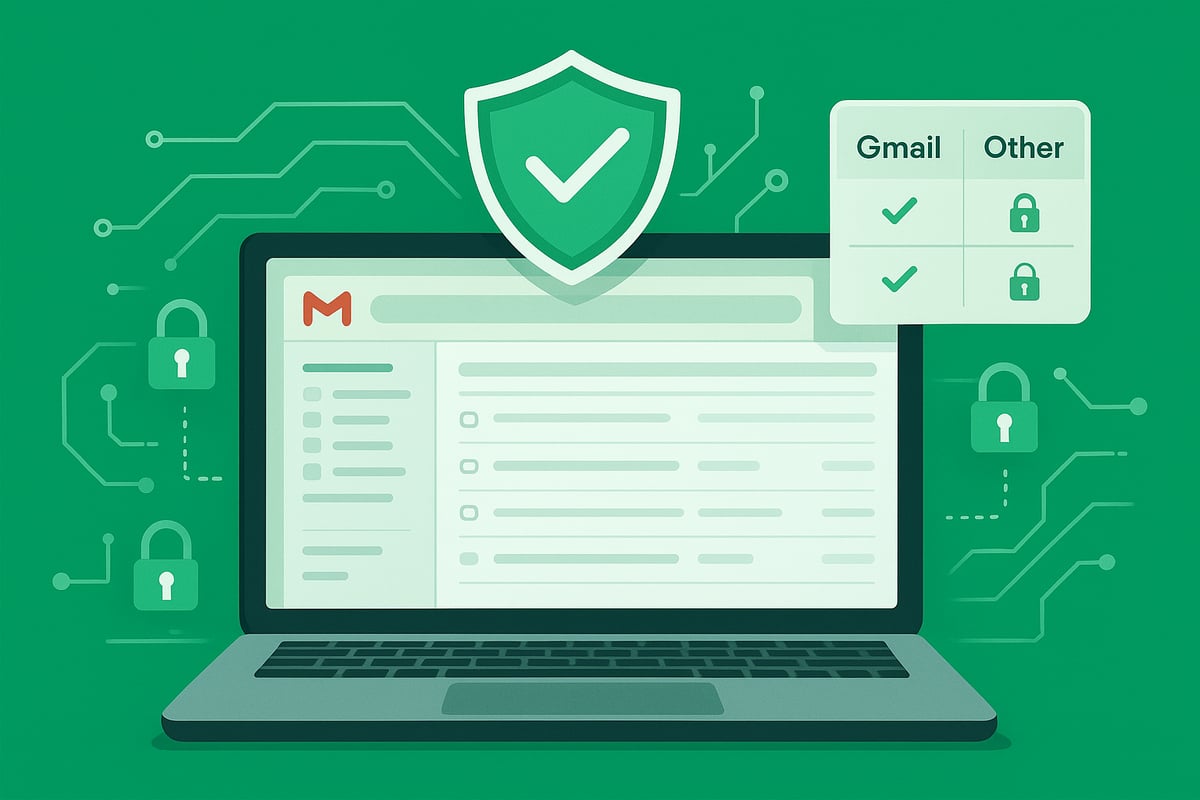
Gmail has undergone significant security improvements by 2026, strengthening its ability to send encrypted email gmail with confidence. The platform now relies on enhanced Transport Layer Security (TLS), ensuring that over 1.8 billion users have their emails encrypted during transit, according to Zapier. This means that when you send a message from Gmail to another provider that supports TLS, your data remains secure in motion.
In addition to TLS, Gmail has expanded its support for S/MIME, especially for Google Workspace users, providing higher-grade encryption and digital signing for business communications. Major updates include the discontinuation of outdated ciphers like 3DES, further reducing vulnerabilities.
Comparing Gmail to other providers, such as Outlook and ProtonMail, reveals that while all offer strong encryption, ProtonMail stands out with default end-to-end encryption, whereas Outlook and Gmail prioritize encryption during transit and at rest. The table below summarizes these differences:
| Provider | In-Transit Encryption | At-Rest Encryption | End-to-End Encryption | S/MIME Support |
|---|---|---|---|---|
| Gmail | Yes (TLS) | Yes | Limited (Workspace) | Yes |
| Outlook | Yes (TLS) | Yes | Limited | Yes |
| ProtonMail | Yes | Yes | Yes (Default) | No |
Gmail’s encryption framework meets strict privacy standards, ensuring compliance with laws like GDPR, CCPA, and HIPAA. However, it is important to recognize the limitations. While Gmail encrypts messages in transit and at rest, it does not provide true end-to-end encryption for all users. For example, emails exchanged between Gmail accounts remain protected throughout, but messages sent to providers without TLS may not be fully encrypted. To learn more about the latest developments, including client-side encryption that enables users to send encrypted email gmail even outside their organization, see this Gmail's Client-Side Encryption Expansion article.
Types of Encryption Supported by Gmail
Gmail offers multiple layers of encryption to help users send encrypted email gmail safely:
- TLS (Transport Layer Security): Automatically safeguards emails in transit if the recipient’s server supports it. This is the default for all Gmail users.
- S/MIME (Secure/Multipurpose Internet Mail Extensions): Available to Google Workspace accounts, S/MIME encrypts and digitally signs emails. Setup requires certificates managed by your organization’s admin.
- Confidential Mode: Adds an extra privacy layer by letting users set expiration dates, passcodes, and restrict actions like forwarding or printing. However, Confidential Mode does not provide end-to-end encryption.
For regulated sectors such as healthcare and finance, S/MIME is especially valuable, as it helps organizations meet compliance requirements. In fact, recent data from Strac and Zapier indicates a steady rise in S/MIME and enhanced encryption adoption among enterprises.
Understanding the distinctions between these encryption types is vital when you send encrypted email gmail. Selecting the right method ensures your sensitive information remains protected, whether for personal privacy or organizational compliance.
Step-by-Step: How to Send Encrypted Email in Gmail
Securing your Gmail communications is vital in 2026, especially when you need to send encrypted email gmail for sensitive data. This section provides a clear, actionable roadmap, ensuring your messages stay private whether you are an individual or managing a team.
Step 1: Prepare Your Gmail Account for Encryption
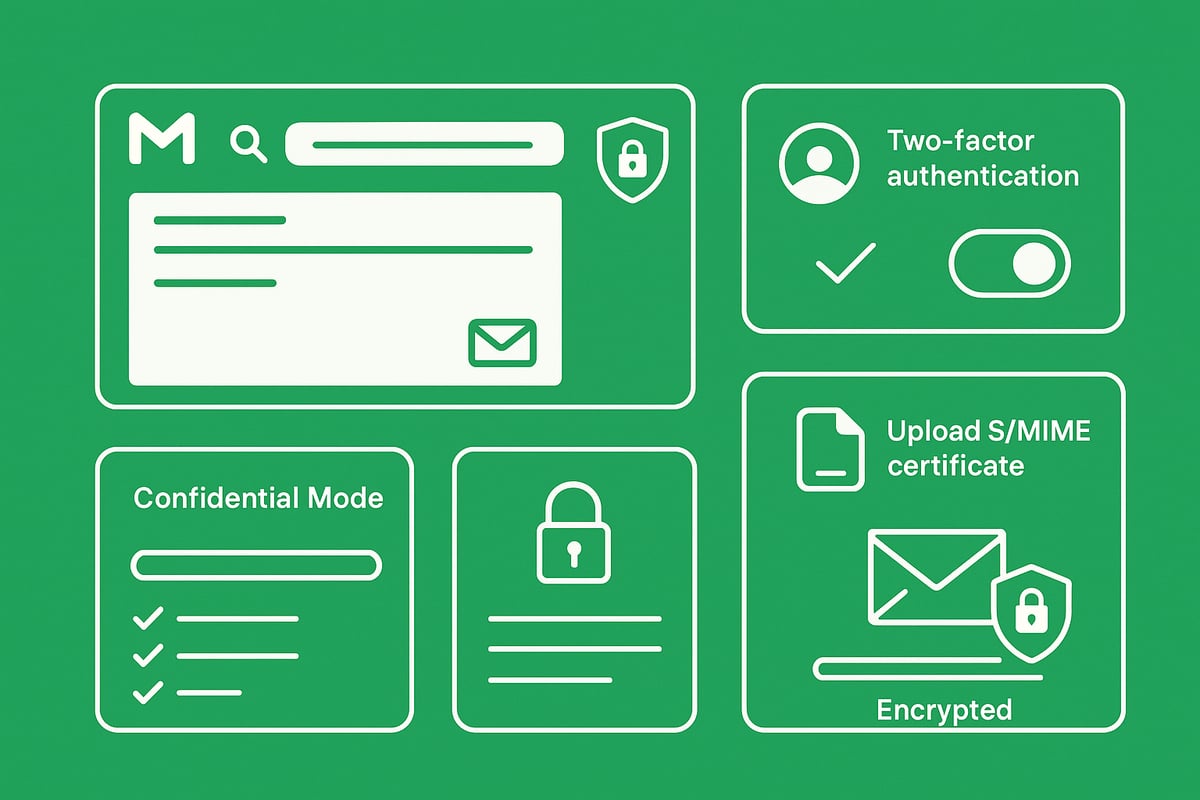
Before you send encrypted email gmail, start by strengthening your account’s foundation. Keeping your Gmail app and browser updated is the first line of defense. Updates include the latest security enhancements, patching vulnerabilities that attackers exploit.
Next, activate two-factor authentication (2FA) for your Google account. This extra layer blocks unauthorized access even if your password is stolen. Google Security Checkup provides personalized recommendations; review and follow its advice for optimal protection.
Consider this: Without 2FA, a single phishing scam could compromise your entire email history. With 2FA enabled, hackers need more than just your password. Always use strong, unique passwords and avoid reusing them across accounts.
- Update Gmail app and browser regularly
- Enable 2FA for enhanced security
- Complete Google Security Checkup
- Use a password manager for strong, unique credentials
By preparing your account, you are ready to send encrypted email gmail with confidence.
Step 2: Using Gmail’s Built-In TLS Encryption
When you send encrypted email gmail, Gmail automatically secures your messages in transit with Transport Layer Security (TLS). TLS ensures that emails are encrypted as they travel between Gmail and the recipient’s email provider.
How do you know if your recipient supports TLS? Look for the padlock icon next to the recipient’s address. A closed padlock means the connection is encrypted. If you see an open padlock, the recipient’s provider does not support TLS, and your message is sent unencrypted.
Compare this: Sending from Gmail to Yahoo typically uses TLS, but if the recipient’s server is outdated, Gmail will notify you. Sending to ProtonMail, known for strong security, also maintains encryption in transit.
Limitations:
- TLS only encrypts emails during transit. Once delivered, messages are stored in plain text unless additional encryption is used.
- If the recipient’s provider lacks TLS support, your email is vulnerable.
Use the padlock cues to verify encryption every time you send encrypted email gmail, especially for sensitive content.
Step 3: Sending Encrypted Emails with Confidential Mode
Gmail’s Confidential Mode lets you send encrypted email gmail with added control. To activate it, click the lock-and-clock icon at the bottom of your compose window (on desktop or mobile). Set an expiration date and, if needed, require an SMS passcode for the recipient to open your message.
Confidential Mode also restricts actions like forwarding, copying, downloading, and printing. This is ideal for sending financial records, health information, or other confidential data.
Steps:
- Compose your email and click the Confidential Mode icon.
- Choose expiration settings and passcode requirements.
- Send your secure message.
Since 2024, Confidential Mode usage has surged as more users seek ways to send encrypted email gmail with greater privacy controls. Remember, while content access is restricted, true end-to-end encryption is not provided. Google can still access the email content if legally required.
Step 4: Advanced Encryption with S/MIME (for Google Workspace)
For business and regulated environments, S/MIME offers a robust way to send encrypted email gmail. S/MIME uses digital certificates to encrypt message content and verify sender identity.
Prerequisites:
- Google Workspace account (paid)
- S/MIME certificate issued to your email address
- Workspace admin setup
To enable S/MIME:
- Admin uploads user certificates in the Google Admin console.
- User enables S/MIME in Gmail settings.
- Compose a new message, and Gmail will show a green padlock if the recipient also supports S/MIME.
S/MIME is essential in sectors like healthcare and law, where compliance and privacy are mandatory. Note that S/MIME is not available for free Gmail accounts.
Benefits:
- True message encryption at rest and in transit
- Digital signature for sender authentication
With S/MIME, you can send encrypted email gmail that meets strict regulatory standards.
Step 5: Verifying Email Encryption Status
After you send encrypted email gmail, always verify the encryption status to ensure your information is protected. Gmail displays padlock icons in different colors:
- Green: S/MIME encryption active
- Gray: TLS in use
- Red or open: Message not encrypted
To check, open your sent message and click the padlock icon. For more details, review the message’s original headers by selecting “Show original.”
Troubleshooting tips:
- If encryption is missing, confirm recipient compatibility.
- Check your S/MIME certificate or Confidential Mode settings.
- For persistent issues, consult Blog on email encryption tips for in-depth troubleshooting and best practices.
Regularly verifying encryption builds trust and keeps your send encrypted email gmail workflow secure.
Enhancing Gmail Security with Third-Party Encryption Tools
Securing sensitive communications is vital, especially as threats evolve. While Gmail offers built-in protections, many users and businesses seek even stronger safeguards. Leveraging third-party encryption tools can provide the robust, end-to-end security that today’s environment demands.
Why Use Third-Party Encryption?
Gmail’s native encryption—while strong—does not provide true end-to-end protection. Messages are encrypted in transit but can be accessed by Google or vulnerable if a recipient’s provider lacks robust security. For those who need to send encrypted email gmail securely, especially in regulated sectors, this gap is significant.
Third-party encryption tools address these limitations by encrypting content on the sender’s device and decrypting it only on the recipient’s device. This ensures that even service providers cannot read the message.
Common scenarios where you need to send encrypted email gmail with third-party solutions include:
- Exchanging confidential contracts with external partners
- Complying with HIPAA, GDPR, or CCPA regulations
- Sending intellectual property or sensitive business data
Without these tools, relying solely on Gmail’s default security may leave critical information exposed. Regulatory bodies increasingly recommend or require end-to-end encryption for high-risk communications.
By adding third-party solutions, you take control of your data privacy and meet compliance needs more efficiently.
Top Third-Party Encryption Solutions for Gmail (2026)
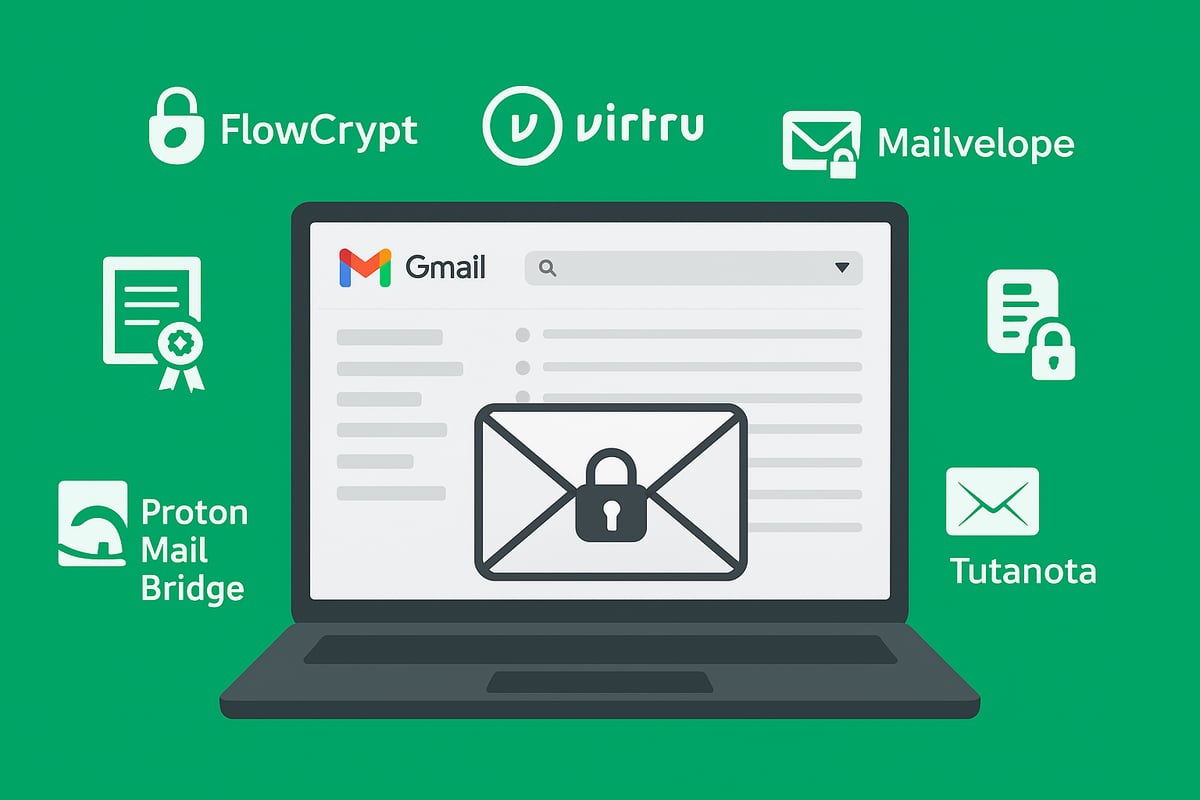
A growing market of tools helps users send encrypted email gmail beyond default protections. Here’s a quick comparison of leading options:
| Tool | Key Feature | Integration Level | Mobile Support | Cost |
|---|---|---|---|---|
| FlowCrypt | PGP end-to-end encryption | Browser Extension | Yes | Free/Paid |
| Virtru | User-friendly controls | Gmail Add-on | Yes | Paid |
| ProtonMail Bridge | Encrypted email bridge | Desktop Client | No | Paid |
| Tutanota | Standalone secure email | Separate App | Yes | Free/Paid |
| Mailvelope | OpenPGP encryption | Browser Extension | No | Free |
FlowCrypt lets you send encrypted email gmail using PGP directly from the Gmail interface. Virtru is popular for business users needing granular access controls. ProtonMail Bridge enables encrypted messages from traditional email clients, while Tutanota offers its own secure ecosystem.
Mailvelope stands out for those seeking open-source, browser-based OpenPGP encryption. For details, see the Mailvelope: Browser Extension for OpenPGP Encryption page.
Each tool balances usability, security, and cost differently. Adoption of these solutions continues to rise among small businesses and enterprises, with organizations reporting fewer breaches and improved compliance.
Installation and Setup Guide
To send encrypted email gmail with a third-party tool, follow these general steps:
- Choose and install an extension: Download your preferred tool (e.g., FlowCrypt) from the Chrome or Firefox store.
- Set up encryption keys: Most tools guide you through generating a new PGP key pair or importing an existing one.
- Connect Gmail: Authorize the extension to access your Gmail account. This adds encryption features directly to your compose window.
- Send your first encrypted email: Compose a new message, select “Encrypt,” and send. Recipients using compatible tools can decrypt seamlessly.
For team onboarding:
- Share public keys among users
- Provide brief training on encryption basics
- Regularly review key management and update as needed
Troubleshooting tips:
- If a recipient cannot decrypt, confirm their key is up-to-date
- For compatibility issues, ensure both parties use supported extensions
- Use the tool’s support resources for persistent problems
With these steps, you empower your organization to send encrypted email gmail confidently, protecting sensitive data and supporting compliance efforts.
Best Practices for Sending Encrypted Emails in Gmail
Securing your communications is a continuous process, especially as threats evolve in 2026. To send encrypted email gmail effectively, you need more than just technical tools. The following best practices will help you safeguard sensitive data, manage encryption keys, educate your team, comply with regulations, and maintain robust email security over time.
Protecting Sensitive Data Beyond Encryption
Even with the latest tools to send encrypted email gmail, your security is only as strong as your basic habits. Always use strong, unique passwords for your email accounts and update them regularly. Enable two-factor authentication (2FA) to add an extra layer of protection against unauthorized access.
Keep your devices and browsers up to date to patch vulnerabilities. Avoid sending confidential information over public Wi-Fi, as these networks are often unsecured and can expose your messages to interception. For step-by-step guidance on secure onboarding, review the Getting started with secure email resource.
A single weak link, such as a compromised password, can undermine even the best encryption methods, so vigilance is key.
Managing Encryption Keys and Certificates
Proper management of encryption keys and certificates is essential when you send encrypted email gmail, especially if you use S/MIME or PGP. Store your private keys and certificates in secure, encrypted storage. Back them up in a safe location to prevent loss due to device failure or theft.
Rotate your keys and certificates periodically to reduce the risk of long-term exposure. If a key is lost or compromised, you may lose access to encrypted messages, which can disrupt business or compliance efforts.
Create a documented process for key management and ensure team members know how to handle keys securely. This proactive approach helps prevent costly security incidents.
Educating Recipients and Teams
Awareness and training are powerful defenses when you send encrypted email gmail to clients or colleagues. Inform recipients about encryption requirements, such as sharing public keys or using password-protected attachments when needed.
Regularly train your staff to recognize phishing attempts and suspicious messages. Incorporate security awareness modules into onboarding and ongoing education. According to industry data, organizations that invest in employee training see up to a 70 percent reduction in successful phishing attacks.
Fostering a security-first culture ensures everyone contributes to protecting sensitive communications.
Compliance and Legal Considerations
When you send encrypted email gmail as part of regulated activities, ensure your practices meet relevant legal standards. Understand the requirements of laws like HIPAA, GDPR, or CCPA, and document your encryption processes for audit readiness.
Choose encryption methods and tools that support compliance, such as S/MIME for healthcare providers needing HIPAA adherence. Maintain records of how encryption is implemented and regularly review your compliance posture to avoid penalties.
Clear documentation and regular updates keep your organization prepared for legal scrutiny and industry audits.
Monitoring and Reviewing Email Security Regularly
Ongoing monitoring is critical to maintain secure email habits as you send encrypted email gmail. Conduct regular security audits and vulnerability assessments of your Gmail accounts. Use built-in tools like Google’s Security Checkup and consider advanced solutions highlighted in Product features for Gmail encryption for comprehensive monitoring.
Review your security configurations monthly to catch misconfigurations or emerging threats before they escalate. Automated alerts and reports help you stay ahead of new risks.
By combining technology and regular reviews, you maintain a resilient defense against evolving cyber threats.
Frequently Asked Questions: Gmail Encryption in 2026
In 2026, users are more conscious than ever about how to send encrypted email gmail securely. Below are the most common questions and clear answers on Gmail encryption, helping you navigate privacy and compliance confidently.
Is Gmail automatically encrypted in 2026?
Yes, Gmail uses Transport Layer Security (TLS) to encrypt emails in transit by default. When you send encrypted email gmail, your message is protected as it moves between servers, provided the recipient’s provider also supports TLS.
Gmail has phased out older encryption methods like 3DES, as detailed in the Gmail Discontinues 3DES Support update, ensuring only modern, robust protocols are used.
Can I send end-to-end encrypted emails in Gmail?
Natively, Gmail does not offer true end-to-end encryption for all users. When you send encrypted email gmail, messages are encrypted in transit but decrypted on Google’s servers.
For end-to-end encryption, you need third-party tools or S/MIME certificates (available for Google Workspace). These options ensure only sender and recipient can decrypt the message.
How secure is Gmail Confidential Mode?
Confidential Mode adds restrictions like message expiration and disables forwarding, copying, and downloading. However, when you send encrypted email gmail using Confidential Mode, the message content is not truly end-to-end encrypted.
Google can still access the message, so for highly sensitive data, consider additional encryption layers. Confidential Mode is best for limiting accidental leaks, not for maximum privacy.
What are the best encryption options for business Gmail users?
Businesses seeking to send encrypted email gmail securely should consider S/MIME, which enables stronger encryption and digital signatures within Google Workspace. S/MIME is ideal for regulated industries like healthcare or finance.
Alternatives include integrating third-party encryption solutions that support end-to-end protection, helping organizations meet strict compliance requirements.
How can I verify if my email was sent encrypted?
Gmail displays a padlock icon when your message is encrypted in transit. To check, open the message and look for the padlock or review message details for “TLS.”
If you send encrypted email gmail and see a broken padlock, the recipient’s provider may not support encryption. Always verify before sending sensitive content.
What should I do if my recipient’s email provider doesn’t support encryption?
If you send encrypted email gmail but the recipient’s provider lacks TLS, your message could be sent unencrypted. In such cases:
- Use password-protected attachments.
- Share files via secure transfer services.
- Ask the recipient to use a provider with encryption support.
These approaches help maintain security even when the recipient’s system is less secure.
Are third-party encryption tools safe and compliant?
Reputable third-party tools for send encrypted email gmail are generally safe if they hold certifications and follow privacy best practices. Evaluate providers for compliance with GDPR, CCPA, or HIPAA as needed.
Check their documentation for security audits, and always review privacy policies before integrating any tool.
Common troubleshooting tips for encrypted Gmail messages
If you encounter issues when you send encrypted email gmail, try these steps:
- Ensure both sender and recipient use updated browsers or apps.
- Confirm correct key exchange for S/MIME/PGP tools.
- Review Gmail’s encryption icons for status.
- Contact your IT or security team for persistent problems.
Where to find more resources on Gmail security
To deepen your understanding of how to send encrypted email gmail, consult:
- Google’s official security documentation.
- Industry-leading cybersecurity blogs.
- Regulatory compliance resources.
Staying informed helps you adapt to evolving security standards and threats.